I’ve worked on more WordPress sites than I can count, and one problem keeps showing up: restrictive upload limits.
You know the scenario. Client needs to upload product photos. Server’s configured with a 2MB upload limit. Their phone camera shoots 8MB images. They get the error, send you a screenshot, and ask you to “fix it.”
The usual solutions include either asking the host to increase the limit, which sometimes is out of the question, or telling the client to resize images first, which many are not too happy to do.
I needed something simpler, so I built Compress & Upload.
What It Does
The plugin compresses images in your browser before they upload to WordPress.
Client drops an 8MB photo into the interface. The browser compresses it down to 500KB. Then it uploads the compressed version to the media library.
No server processing. No third-party APIs. Everything happens on the client side.
When This Actually Helps
Upload size limits: Your host caps uploads at 10MB or less but clients have high-res photos from modern cameras or phones.
Slow connections: Uploading full-size images on spotty WiFi or mobile data takes forever. Smaller files upload faster.
How to Use It
Install the plugin from the WordPress repository or upload it manually https://wordpress.org/plugins/compress-then-upload/.
Navigate to Media → Compress & Upload
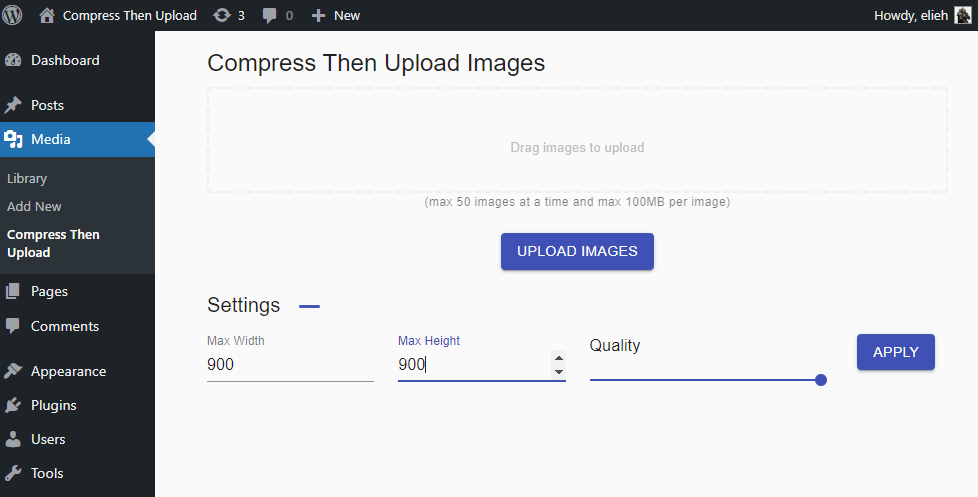
The Compress & Upload main page
The interface is straightforward—just a dropzone for your images.
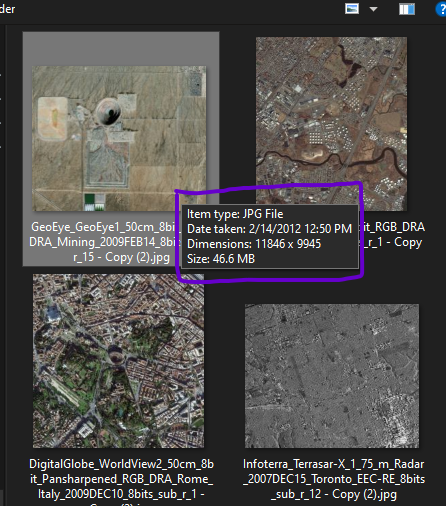
Sample large images in size and dimensions
Before compression, you can see the original file sizes and dimensions. Modern phone cameras often produce images that are 5-10MB and several thousand pixels wide.
Drag and drop your images into the dropzone.
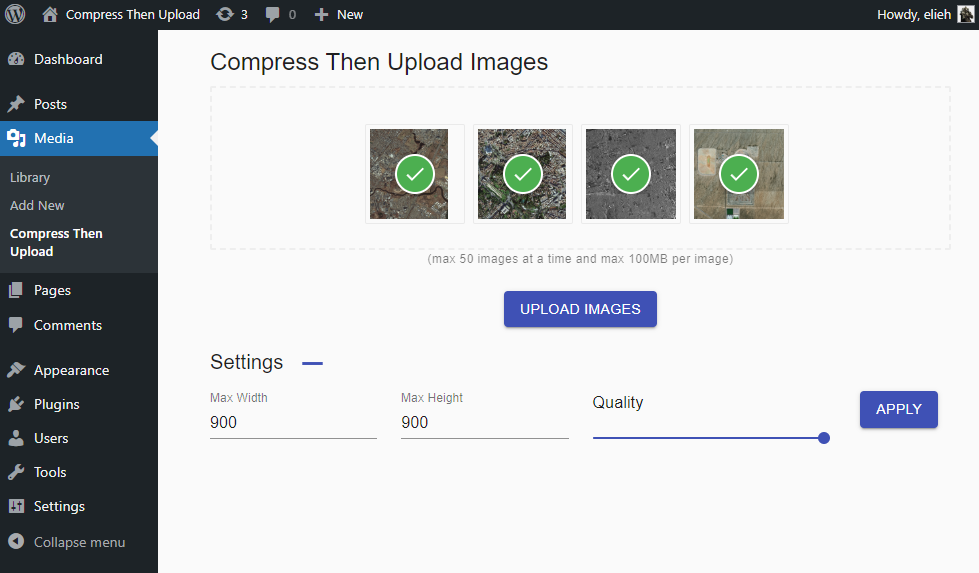
Process of images being resized and then uploaded
Watch the plugin compress each image in real-time before uploading. The progress indicator shows both compression and upload status.
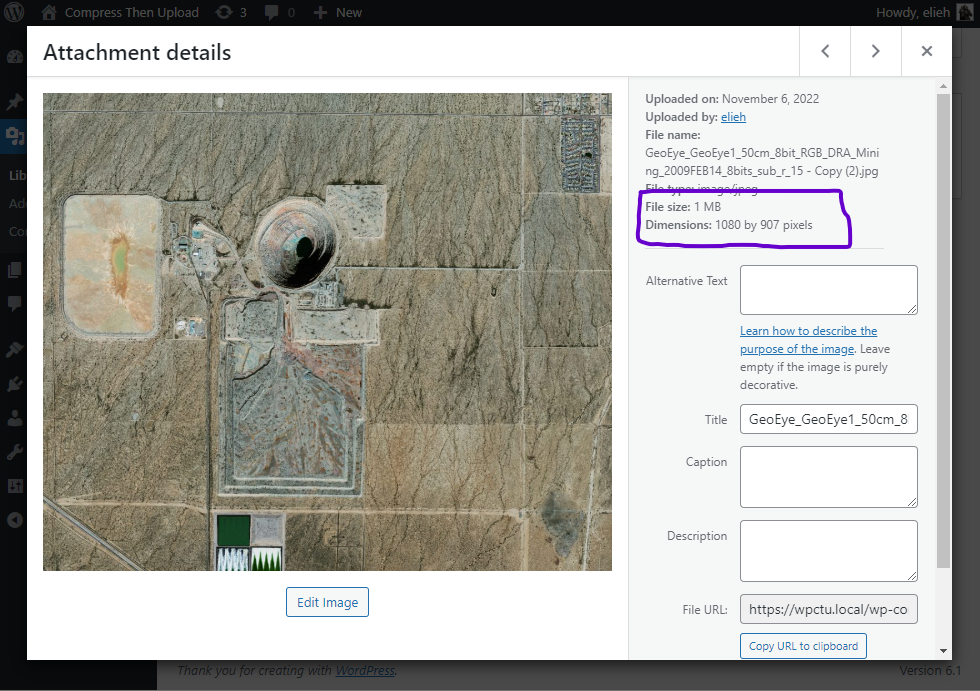
New optimized image size and dimensions saved in WP Media Library
Check Media → Library to see your uploaded images. You’ll notice the file sizes are significantly smaller while maintaining reasonable quality for web use.
How It Works (The Technical Bit)
The plugin uses the browser’s Canvas API to resize and compress images before upload. Here’s the basic flow:
- User drops image into interface
- JavaScript reads the file and loads it into a Canvas element
- Canvas resizes the image (if needed) and compresses it
- Compressed blob gets uploaded to WordPress via AJAX
- Server receives already-optimized image
This approach has a few advantages:
No server load: Compression happens on the user’s device, not your server
Works with any host: Even hosts with strict upload limits accept the smaller files
No dependencies: Uses native browser APIs, no external libraries needed
What Gets Compressed
The plugin compresses JPEG and PNG images. It preserves the original aspect ratio but reduces file size significantly.
A 4000×3000 photo from a phone camera gets resized to something more appropriate for web use while maintaining quality. The dimensions can also be adjusted before compression.
Alternative Approaches
If this plugin doesn’t fit your workflow, here are other options:
Increase upload limits: Edit php.ini or .htaccess to raise the limit. Requires server access and doesn’t help with slow connections.
Server-side optimization plugins: Smush, ShortPixel, Imagify. These compress after upload, so large files still need to transfer first.
Manual compression: Tools like TinyPNG or Photoshop. Works well but requires extra steps from users.
I wanted something that just worked without configuration or extra steps, which is why I built this.
Common Issues
Upload fails silently: Check browser console for JavaScript errors. Usually a CORS issue or server timeout.
Images still too large: The plugin compresses but doesn’t always hit specific size targets. If you need files under a certain size, manual compression might work better.
Compressed quality looks poor: The Canvas API compression is decent but not perfect. For critical images where quality matters, manual optimization gives more control.
Contributing
The plugin is open source. If you want to improve it, fix issues, or just browse the code, check out the repository on GitHub.
I built this to solve a specific problem I kept encountering. If it helps you avoid explaining image resizing to clients one more time, it’s done its job.
Reach out to me if you run into any problems.